Click here to view the table of contents:
Amazon Aurora PostgreSQL
This page provides the required information for setting up replications using Amazon Aurora for PostgreSQL. The setup process for a Refresh replication can usually be completed using the Syniti Replicate wizards without additional documentation, as it does not involve access to the PostgreSQL log. For complete details on the setup process, refer to the Syniti Replicate User Guide available from the Management Center's Help menu.
This page describes the setup process using the Log Server Agent option for one-way mirroring and synchronization when replicating data from a PostgreSQL database. For mirroring and synchronization replications using PostgreSQL as a source, Syniti Replicate offers the Log Server Agent option that uses a Windows service and a Log Server component to query the PostgreSQL log for increased performance when dealing with large amounts of data.
Versions Supported
Amazon Aurora for PostgreSQL is supported as source and target systems in Refresh, Mirroring, and Synchronization with the following version combinations:
- Amazon Aurora PostgreSQL with PostgreSQL 9.6 – 10 (deprecated)
- Amazon Aurora PostgreSQL version 3.x with PostgreSQL 11
- Amazon Aurora PostgreSQL version 4.x with PostgreSQL 12
- Amazon Aurora PostgreSQL version 13 with PostgreSQL 13
Prerequisites
-
Ensure that you download the appropriate PostgreSQL .NET Data Provider from PostgreSQL.
-
Ensure that you have the Npgsql (file name: Npgsql.dll) assembly in your path name. For example, C:\Npgsql-3.2.6-net40\Npgsql.dll
-
The provider version number stored in the DBReplicator.exe.config file (in the Syniti Replicate hyper folder) must match the provider version that you are using. To change the version of the provider, specify the newVersion in the DBReplicator.exe.config file as follows:
<dependentAssembly>
    <assemblyIdentity name="Npgsql" publicKeyToken="5d8b90d52f46fda7" culture="neutral">
    </assemblyIdentity>
    <bindingRedirect oldVersion="2.2.3.0" newVersion="2.2.3.0">
    </bindingRedirect>
</dependentAssembly>
Driver Matrix
|
Database Version |
Driver Version |
|
Amazon Aurora PostgreSQL 9.6 – 10 |
NpgSQL 3.2.6 |
|
Amazon Aurora PostgreSQL 11 |
NpgSQL 4.0.2 |
|
Amazon Aurora PostgreSQL 12 |
NpgSQL 4.0.11 |
|
Amazon Aurora PostgreSQL 13 |
NpgSQL 4.0.11 |
Install the driver DLL using the Microsoft Global Assembly Cache Tool (GAC). If the provider is not registered, you will receive the following error when attempting to use the provider:
System.IO.FileNotFoundException: Could not load file or assembly 'Npgsql
For more information about this error, refer to our Knowledge Base.
PostgreSQL System Settings
Syniti Replicate supports Amazon Aurora PostgreSQL versions 9.6 and above as a source database for mirroring. It requires every connection to PostgreSQL from Syniti Replicate use a dedicated replication slot such that the PostgreSQL replication slot feature is used effectively. A single slot represents an ordered stream of changes that occur on a specific database on the origin server. For more information, refer to the PostgreSQL Documentation website.
Note that if you enable a replication slot from Syniti Replicate without using it, the slot will consume resources and prevent the database cleanup functionality to purge old records from the transaction log, because they do not appear as consumed by an existing slot. Therefore, it is important to remove replication slots from the database by removing the Syniti Replicate connection if it is not used in replication.
Amazon Aurora for PostgreSQL Database Setup
Prerequisites
-
Set up the Amazon Aurora for PostgreSQL database as a source for transactional replications (CDC) in Syniti Replicate using the detailed instructions provided on Working with AWS-managed PostgreSQL databases as a DMS source.
-
Ensure that you complete the steps in the following sections:
-
Prerequisites for Using a PostgreSQL Database as a Source for AWS DMS
-
Setting Up an Amazon Aurora PostgreSQL DB Instance as a Source (Using CDC with an Aurora for PostgreSQL DB Instance section)
-
Once you have reviewed and completed the above instructions, complete the below steps.
Setting up PostgreSQL Aurora for Logical Replication
Note: The below screen shots are for reference only. The actual AWS UI might differ.
-
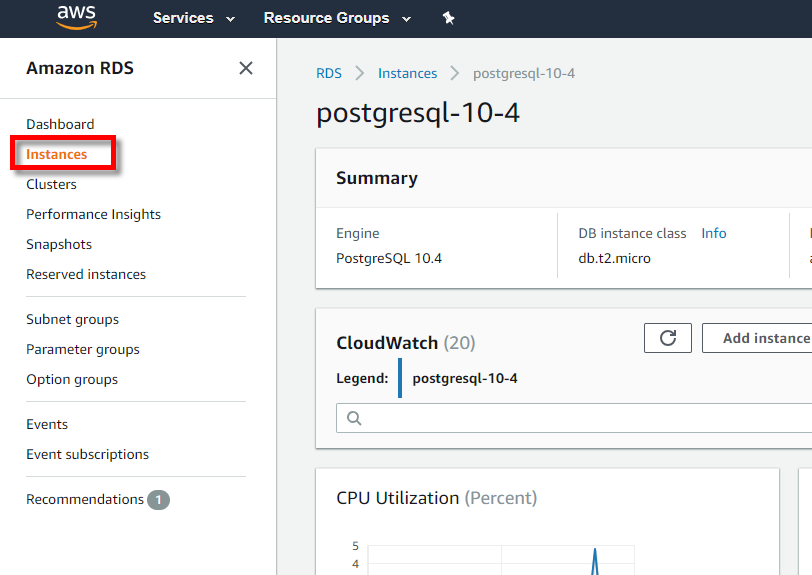
Log in to your aws account and access the Aurora database instance that you have created.
-
Access the Details > Configuration section of your instance and take note of the Parameter Group used for your RDBMS.
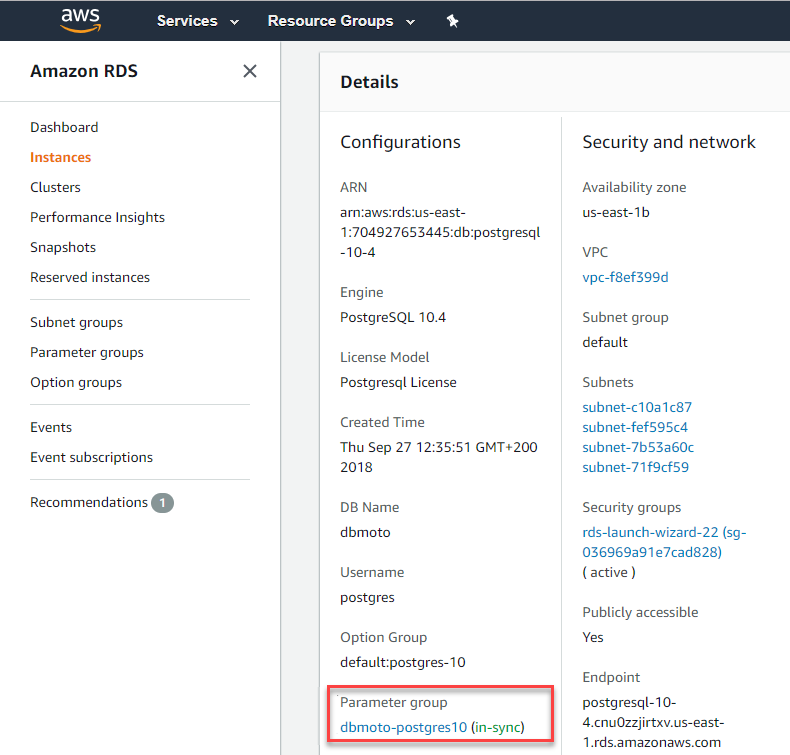
Generally, when an instance is initially created, Aurora will configure a set of parameters by assigning a Default Parameter Group to the instance. A default parameter group is a set of database parameters that is standard and is the same for all instances of that database type. To customize your parameter settings (as required to enable transactional replications in Syniti Replicate), create a Custom Parameter Group and assign it to the instance. -
Select Parameter Groups from the side panel. A list of parameter groups is displayed.
-
Select Create Parameter Group to create a custom group. In this process, make sure you indicate the type of database (PostgreSQL) and the version that your instance is running to select the correct type of parameter group.
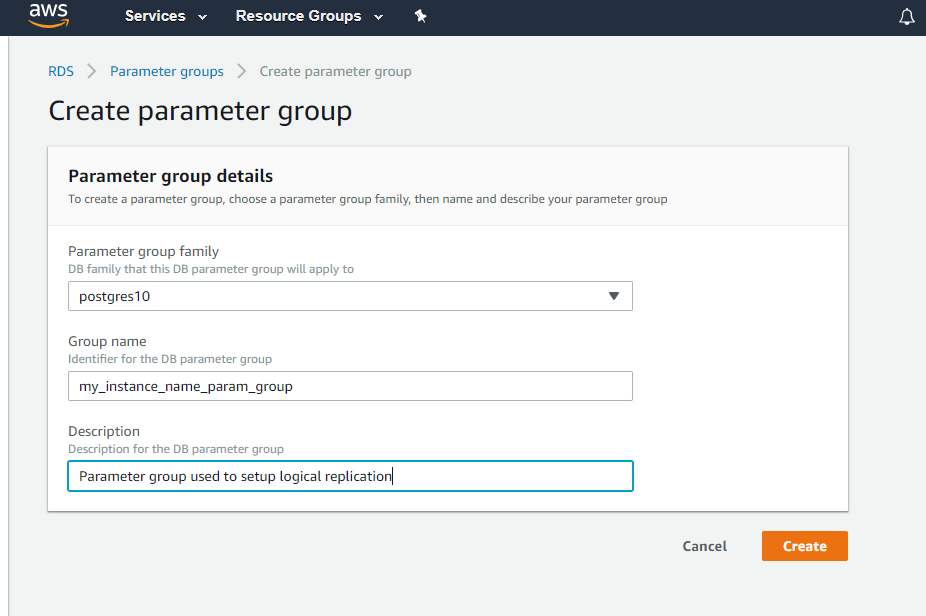
Once the group is created, modify its properties to allow logical replication. -
In the Parameter Groups view, select the newly created group.
-
Search for the logical_replication property and set its value to 1.
-
Search for the wal_sender_timeoutproperty and set its value to 0.
-
Access Instances > Details and select Modify.
-
Access the Database Options section and select the Custom Parameter Group that you have created, and the select Continue. Aurora will then let you save these settings. You can select the option to save the changes at the next planned maintenance time or immediately. Even if you opt for immediate changes, the database status will be set as unavailable for some time.
-
Once the database is available, select Instance Actions and select Reboot. These settings will take effect after the database has been rebooted.
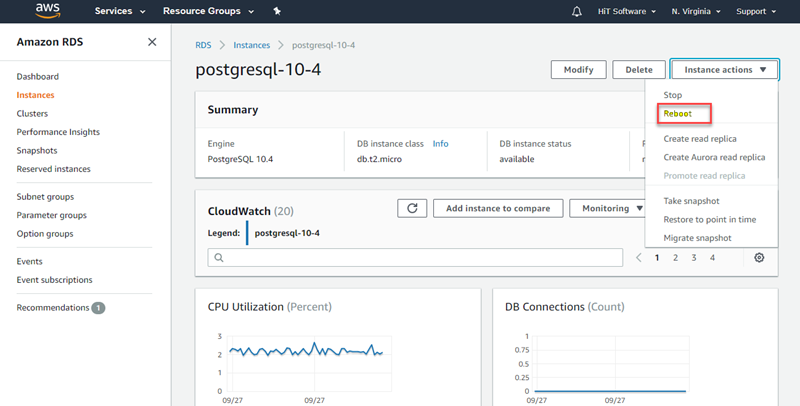
PostgreSQL on Amazon Aurora is ready to be used from Syniti Replicate and you can start setting up the transactional replication from the Management Center.
Recommendations and Restrictions
Restrictions apply on CDC replication when using PostgreSQL as a source. Although these are listed in the link Amazon Aurora for PostgreSQL database or Amazon AWS documentation, a subset is listed below as these restrictions apply specifically to use of PostgreSQL with Syniti Replicate.
The following limitations apply when using PostgreSQL as a source for AWS DMS:
- A captured table must have a primary key. If a table doesn't have a primary key, AWS DMS ignores DELETE and UPDATE record operations for that table.
- Timestamp with a time zone type column is not supported.
- AWS DMS ignores an attempt to update a primary key segment. In these cases, the target identifies the update as one that didn't update any rows. However, because the results of updating a primary key in PostgreSQL are unpredictable, no records are written to the exceptions table.
- Replication of multiple tables with the same name but where each name has a different case (for example table1, TABLE1, and Table1) can cause unpredictable behavior, and therefore AWS DMS doesn't support it.
- AWS DMS doesn't support change processing of TRUNCATE operations.
- The OID LOB data type is not migrated to the target.
- If your source is an on-premises PostgreSQL database or a PostgreSQL database on an Amazon EC2 instance, ensure that the test_decoding output plugin (found in the Postgres contrib package) is installed on your source endpoint. For more information about the test-decoding plugin, see the PostgreSQL documentation.
- AWS DMS doesn't support replication of partitioned tables. When a partitioned table is detected, the following occurs:
The endpoint reports a list of parent and child tables.
AWS DMS creates the table on the target as a regular table with the same properties as the selected tables.
If the parent table in the source database has the same primary key value as its child tables, a duplicate key error is generated.
Note: To replicate partitioned tables from a PostgreSQL source to a PostgreSQL target, you first need to manually create the parent and child tables on the target. You then define a separate task to replicate to those tables. In such cases, you set the Task Configuration to Truncate before loading.
Add Source Connection Wizard
Select Provider Screen
-
Select PostgreSQL as the database from the list.
-
Select PostgreSQL .NET Driver as a Provider.
-
Locate the .NET Assembly Npgsql.dll in the installation folder for the PostgreSQL .NET Provider.
Connection Properties - Required Information
|
Property |
Description |
|
Server |
Address or name of the PostgreSQL server |
|
User ID |
Database User ID |
|
Password |
User password |
Connection Properties - Optional Information
|
Property |
Description |
|
Database |
Database name. Defaults to user name if not specified |
|
Port |
Port to connect. |
|
Pooling |
Enables or disables connection pooling |
|
Max Pool Size |
The maximum number of connections allowed in the pool |
|
Min Pool Size |
The minimum number of connections allowed in the pool |
|
Encoding |
Encoding to be used |
|
Timeout |
The length of time (in seconds) to wait for a connection to the server before terminating the attempt and generating an error |
|
SSLMode |
Modes for SSL Connection control: - Prefer: If it is possible to connect using SSL, it will be used - Require: If an SSL connection cannot be made, an exception is thrown - Allow: Allow encryption if the server requires it - Disable: No SSL connection is done - Verify-CA: Connect using SSL, allowing connections to a server that somebody else may have registered with the CA - Verify-Full: Connect using SSL, allowing connection to a server that the user have registered with the CA. |
|
SSL Certificate |
Location of a client certificate to be sent to the server. Introduced in v6.0 |
|
SSL Key |
Location of a client key for a client certificate to be sent to the server. Introduced in v6.0 |
|
SSL Password |
Password for a key for a client certificate. Introduced in 6.0 |
|
Root Certificate |
Location of a CA certificate used to validate the server certificate |
|
ExtendedProperties |
Additional properties no listed in the grid. Enter the properties as a list of "property = value" string separated by ";" |
Enable Transactional Replication Wizard
For transactional replications (mirroring and synchronization), use the Enable Transactional Replication wizard after setting up a source connection. The following fields require specific information for PostgreSQL.
Log Type Screen
Select the Log Server Agent option.
Log Settings
Replication Slot: Use Existing Slot
Replication slots are channels that you open on the database to allow Syniti Replicate to receive data changes from the log. While the default is to use a new slot specifically for a Syniti Replicate connection, it is possible to reuse an existing slot if it is not consumed by any other connection. A replication slot must be uniquely assigned to a single Syniti Replicate connection.
Replication Slot: Add New Slot
Syniti Replicate needs to define a “replication_slot” for every connection that it uses to replicate from PostgreSQL. This option allows you to set up a new slot from Syniti Replicate. However, the new slot will be added only if the maximum number of slots has not been exceeded. This value is set in the postgresql.conf file. Be aware that if slots are created then left unused, they still consume resources, so you should always manage replication slots carefully.
Plugin Type
Ensure that the test_decoding option is selected from the Menu list.
Data Type Mapping
When Amazon Aurora for PostgreSQL is used as a target system, the mapping of Syniti Replicate data types to the corresponding data type in Amazon Aurora for PostgreSQL is listed in the following table:
|
Syniti Replicate Mapping |
Amazon Aurora for PostgreSQL |
|
Bit |
boolean |
|
Smallint |
smallint |
|
Integer |
integer, oid, cid, xid |
|
Bigint |
bigint |
|
Double |
float8, double precision |
|
Float |
real |
|
Real |
real |
|
Numeric |
numeric |
|
Decimal |
decimal |
|
Char |
char, character, ""char"", bit |
|
Varchar |
varchar, character varying, bit varying |
|
LongVarchar |
text |
|
Binary |
bytea |
|
Varbinary |
bytea |
|
LongVarbinary |
bytea |
|
Date |
date |
|
Time |
time without time zone, time with time zone |
|
Timestamp |
timestamp without time zone |
|
TimestampZ |
timestamp with time zone |
|
Money |
money |
|
Blob |
bytea |
|
Clob |
text |
|
Number |
numeric |
|
AutoInteger |
integer |
|
Tinyint |
decimal(3) |
|
Smalldatetime |
timestamp without time zone |
|
NChar |
char |
|
NVarchar |
varchar |
|
NText |
text |
|
Smallmoney |
money |
|
GUID |
uuid |
|
AutoDecimal |
numeric |
|
AutoNumeric |
numeric |
|
AutoTinyint |
tinyint |
|
AutoSmallint |
smallint |
|
Sysname |
varchar(128), name |
|
Xml |
xml |
|
Json |
json |
Further Resources
- For a complete up-to-date list of supported sources and targets, and information on where to obtain a .NET provider, check the Supported .NET Providers article in the Help Center.
- The Help Center also provides database-specific setup notes in PDF format.